Tuesday, March 10, 2015

Sync multiple Google calendars on one google account to PC with Thunderbird Lightning

There are more than one way to sync Google calendar to a windows PC but a simple method is to sync via CalDAV by Thunderbird with Lightning extension . Lightning extension can be installed through the Add-ons menu in Thunderbird after it is installed. Restart Thunderbird to enable Lightning when prompted to do so.

 After the email account is set up, click on the account name on the folder pane on the left in the email tab to show the home page.

  • Click on the "Calendar" tab then right click on the empty space under the list of calendars on the left pane. The click on "New Calendar..."
  • Select a Network calendar


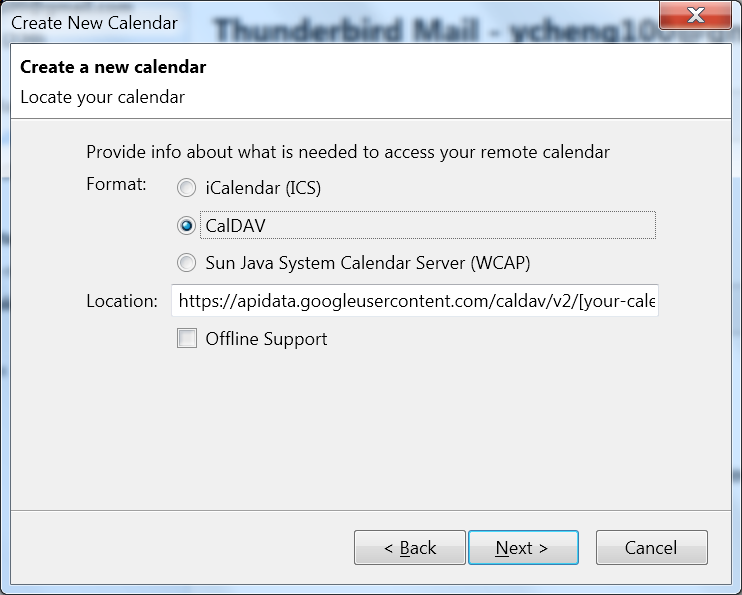
  • Select the CalDAV format and enter the following as location

https://apidata.googleusercontent.com/caldav/v2/[your-calendar-id]/events
Replace [your-calendar-id] with the Calendar ID found on the Calendar Settings -> Calendar Address section on your Google calendar. The Calendar ID of your first Google calendar is your Gmail address.


  • Enter the username and password of the Google account to authorize Lightning for managing your calendar. 
  • Repeat the above steps to create a calendar file for each of the rest calendars on one Google account. The calendar IDs of these calendars typically end with @group.calendar.google.com
  • And you can sit back and enjoy them now.


Tuesday, December 23, 2014

Fix slow USB mouse response on my Chromium OS


I have a cordless USB mouse Lenovo N50 connected to a MSI X340 laptop with Chromium OS installed on it. The same mouse works flawlessly on a Chromebook Acer C720 but it gets very slow response on the X340 with Chromium OS ArnoldTheBats build. The mouse cursor's movement on the screen always lags that of the actual mouse by noticeable amount of time. I've tried changing the mousing setting in Chromium browser or xset in console but neither worked. However, today I was able to fix it after updating the Chromium OS to the latest build by following the steps below:
  1. Set my own password for root user: Go to Developer Console in Chromium (push keys Ctrl- Alt-F2) and log in as user "chronos" with initial password "password". Then type the following command:
    sudo chromeos-setdevpasswd

    and enter the new password
  2. Become root user by typing the following command:
    sudo su

    and enter the password set in the previous step
  3. Check network status with the following command:
    ifconfig 
    In my case, the wireless interface wlan0 is not connected under developer console as no IP address is shown under wlan0. I had to connect an ethernet cable to the laptop to get interface eth0 up. 
  4. Update Chromium OS to the latest build with the following command: update_engine_client --update --omaha_url=http://chromebld.arnoldthebat.co.uk:8080/update
  5. (May not be necessary) After the above update is successful, type the following command:
    sudo stateful_update 
    In my case, this command actually failed.
  6. Try updating the system again as the previous command failed:
    update_engine_client --update
    sudo stateful_update 
    No need to supply the –omaha-url any more in future updates. It showed that the update succeeded and system needs reboot.
  7. Reboot the system and now the mouse is as responsive as on the other Chromebook
  8. Reinstall the Flash plugin: the update was 32-bit, so I used the first instruction below with the link http://goo.gl/FrT7Q6